
On Monday October 17, all i-Ready teacher accounts will be updated to include all rosters.
Jump To
- Training Slides for all student/staff logins and Clever Badges K-2; how to reset student PWs 3-8t grade
- How to Login and Access
- Rosters
- FAQs, Training and Support
- Help - I still need support
How to Access
Students
- Use Clever [Clever 101]
Teacher or a Co-Teacher
On Monday October 17, all i-Ready teacher accounts will be updated to Staff and will include all rosters.
- Use Clever [Clever 101]
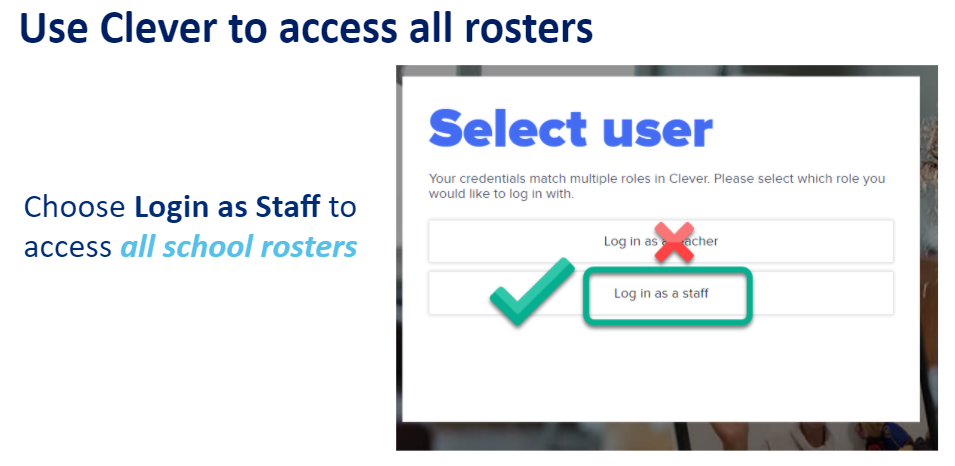
- Select Login as Teacher access your entire school and all rosters
Access all rosters (for any teacher, AP, SL, non-teaching staff, Regional Leaders)
- Use Clever [Clever 101]
- Select Login as Staff if you want to access your entire school and all rosters
- All teachers, co-teachers and non-teaching staff can always login as “Staff”
Rosters
Not seeing the rosters or students you expect in the app?
- If you need a student roster change in PowerSchool, or teachers/staff need to be added to sections, please reach out to [School Ops team]
- All rosters in PowerSchool are copied into this app nightly
- Keep in mind:
- Limit of # of “co-teachers” in PowerSchool: most apps have a limit of 4-6 teachers or staff who can be assigned to a roster in PowerSchool
- App refresh cycle: iReady is expected to refresh all rosters each night, with changes from the previous day refreshed before school starts
Frequently Asked Questions (#AppFAQs)
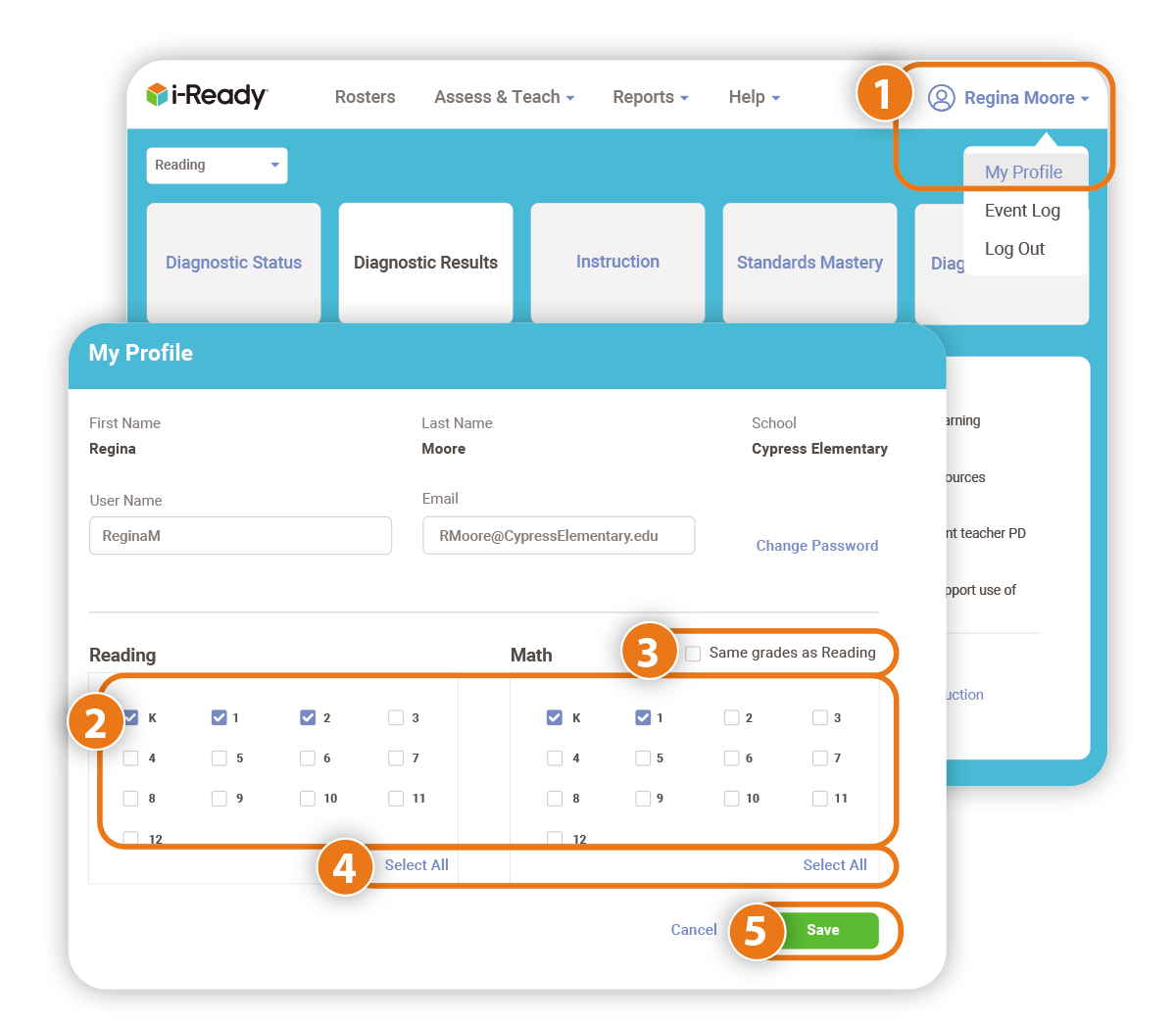
How can I update my grade and subject?
1. Click on your name, and then on My Profile.
2. Select the grade levels for which you will be using i-Ready this year by using the checkboxes. Make sure to select grade levels for Reading AND Mathematics if you teach both subjects.
3. You can select the Same grades as Reading checkbox if you teach the same grade levels for both subjects.
4. You can also choose Select All for Reading and/or Mathematics if you teach all grade levels.
5. Click Save.
Monitoring Student Progress in Online Instruction- Reports
Alerts - Turning Domains On
How can I see all rosters? Or a specific roster?
- Use your “Staff” login in Clever to view your entire school’s rosters: see “How to Access”
How can I login as a student and troubleshoot if there is a student login issue?
Where are training and guides for this app?
I still need support - who do I reach out to?
Make sure to review the tips above
- Reach out to your [School Ops] for all roster questions
- Know how to troubleshoot student logins
The app is not loading, or there is an error page - help!
- First make sure your network and other websites are functioning properly, and that you logged in following the steps outlined above → if network and connectivity is an issue, reach out to your school Tech support
- If possible, you or the user should use a different device to determine → if the device is the issue, reach out to your school Tech support
- Confirm your PC and network system check with the app
- Please notify Data and share a screenshot and any details to help us troubleshoot
Check out the vendor help guides
- iReady Central: help guides, training materials and more
More questions?
Send a ticket to data@kippteamandfamily.org
Comments
0 comments
Article is closed for comments.